How to Get Business Cards into Salesforce Without Manual Entry
A practical walkthrough of moving contacts from paper cards to Salesforce Leads, Accounts and Contacts — accurately, and without retyping a thing.
Most sales teams know the drill: a stack of cards comes back from an event, someone promises to “add them to Salesforce this week”, and half of them never make it. Manual entry is slow, error-prone, and the first thing to slip when the calendar fills up.
Here’s how to remove it from the process entirely.
1. Decide where scanned cards should land
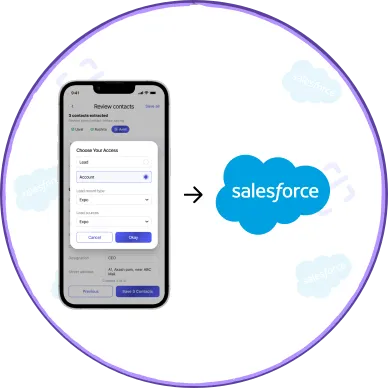
Before anyone scans, agree on the destination. Should a new card become a Lead for sales to qualify, or an Account and Contact pair for existing relationships? Many teams use both — reps create Leads, while account managers add Contacts to existing Accounts.
In PeriScan, admins set this per user under Object Configuration, including which record types each person may use.
2. Map card fields to your data model
A card gives you a name, title, company, email, phone numbers, website and address. Your org may also have custom fields you care about. Field Mapping lets you choose exactly which Salesforce field each value fills, per object, and flags any required fields that aren’t mapped.
3. Set duplicate rules
The same person will be scanned twice — by the same rep at a follow-up, or by two colleagues at the same booth. Define what counts as a match (email, phone, company, name, or a combination) under Duplicate Management so PeriScan checks before it creates anything.
4. Assign licenses and pair devices
Assign PeriScan licenses to the users who need them. Each user then signs in to the mobile app with Continue with Salesforce, and their device is paired to their license.
5. Scan, review, sync
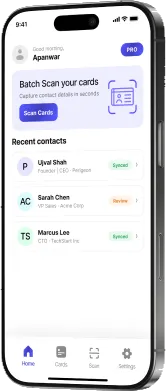
From here the workflow is three steps:
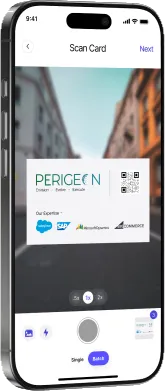
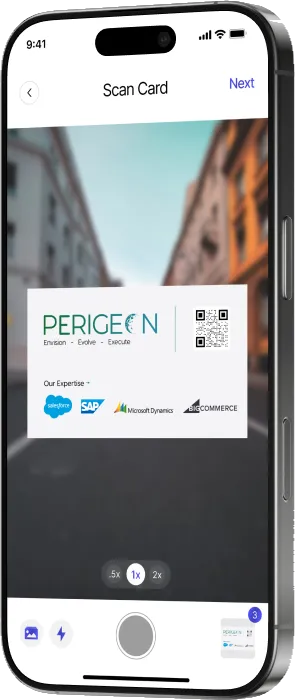
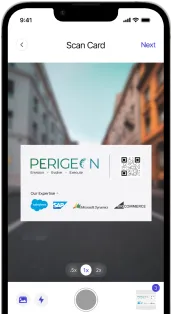
- Scan a card (or a batch of them).
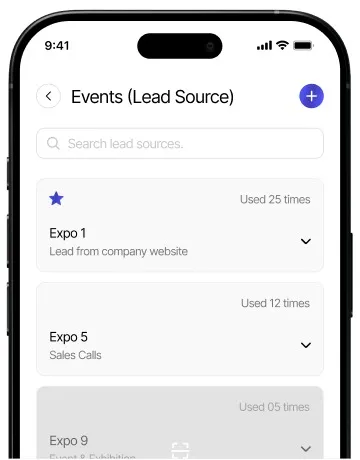
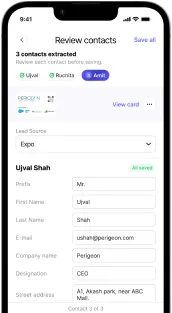
- Review the extracted details, choose a lead source, and fix anything the OCR missed.
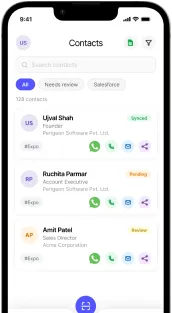
- Save to Salesforce — PeriScan creates the record using your mappings and rules.
The payoff
Records arrive while the conversation is still fresh, with consistent fields and a lead source attached. That means faster follow-up, cleaner reporting, and no Friday-afternoon data entry.
Ready to set it up? See how PeriScan works with Salesforce.