Batch Scanning: Capture a Stack of Business Cards in Minutes
Came back from an event with a pile of cards? Here's how to use PeriScan's batch mode to scan them all quickly and review them in one pass.
PeriScan Team 2 min read
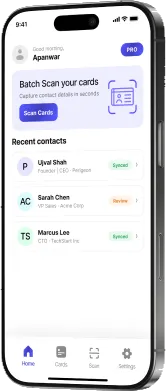
Scanning one card at a time is fine after a meeting. After a conference, it’s tedious. PeriScan’s batch mode is built for exactly that stack of cards on your desk.
How batch mode works
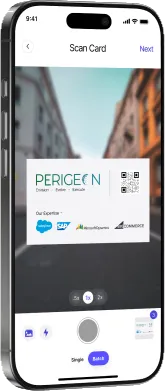
- Open the scanner and switch from Single to Batch.
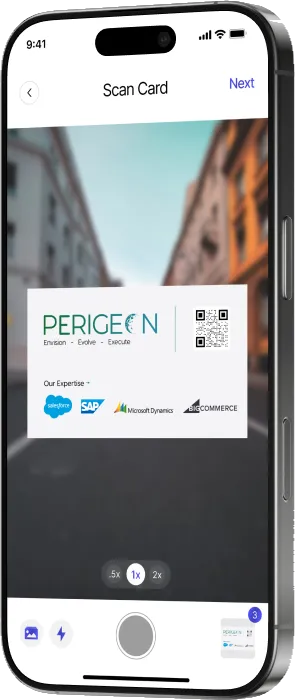
- Lay out the first card and capture it. PeriScan adds it to the queue and shows a running count.
- Keep going — swap the card, capture, repeat.
- When you’re done, tap Next. PeriScan extracts the details from every card.
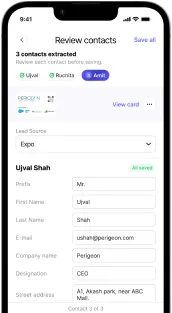
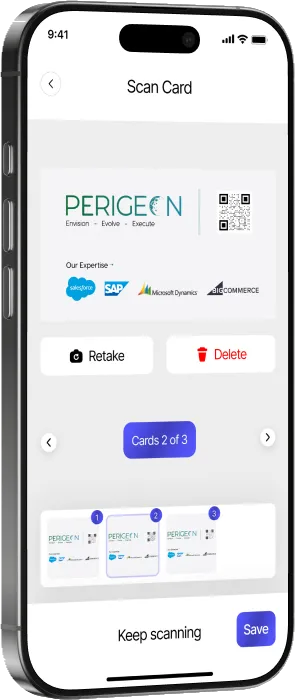
- Step through the Review contacts screen. Each contact shows its card image alongside the extracted fields, so you can check and correct as you go.
- Save all when everything looks right.
Tips for a fast, clean batch
- Use a plain, contrasting surface. A dark desk under white cards (or vice versa) helps edge detection.
- Good, even light. Avoid harsh shadows and glare on glossy cards.
- Fill the frame. Hold the phone parallel to the card and close enough that the card fills most of the view.
- Set the lead source once. If every card is from the same event, choose the lead source on the first contact and keep it consistent.
- Retake rather than retype. If a capture is blurry, retake it from the review screen — it’s faster than fixing every field.
Then sync or export
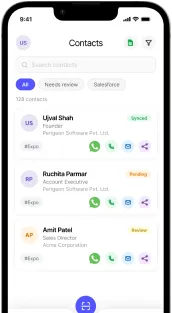
Once saved, the batch behaves like any other contacts: sync them to Salesforce, export them to Excel, or reach out directly from the contact list.
Batch scanning is available on every PeriScan plan. Need more capacity for a big event? Add a scan pack anytime.